May 8, 2026
Can Claude make 3D models? Hands-on with Blender + SketchUp
Anthropic has launched Claude for Creative Work. Claude now works alongside the programs that designers, musicians and 3D makers use. For webshop owners the 3D side is what's interesting. Three connectors work with Blender, SketchUp and Autodesk Fusion. With these tools you create 3D models for your products.
What is Claude for Creative Work?
Compare it to how AI now collaborates inside Google Docs or Microsoft Office. AI reads along and can edit your document directly. With the Creative Work connectors, Anthropic brings that to 3D software. Claude reads your scene, adjusts shapes or dimensions, swaps materials and builds new parts directly into the model.
Which 3D tools now work with Claude?
The three tools differ in price, learning curve and what kind of products you can make with them.
Blender
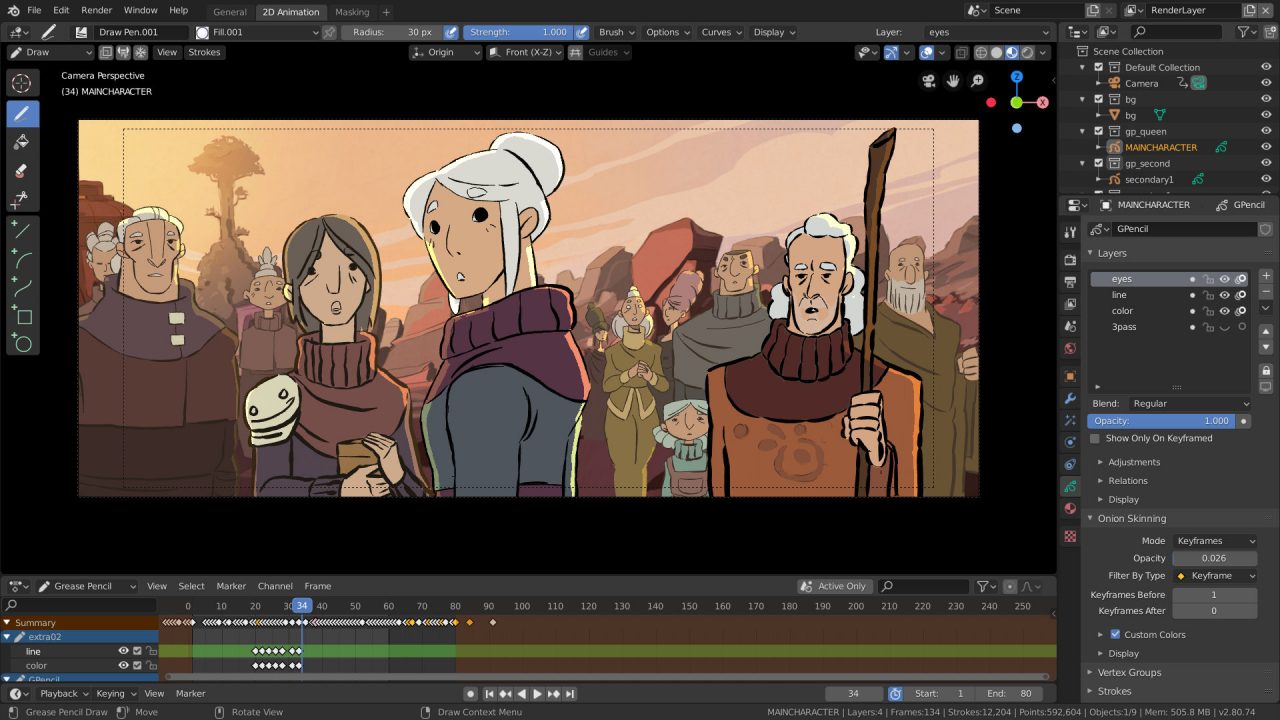
Blender is free, open source and used by 3D artists and studios worldwide. Learning takes time. The interface is packed with options and experienced users work mostly with keyboard shortcuts instead of menus. YouTube offers thousands of tutorials for anyone willing to dig in. With the Claude connector you don't need to memorise everything. Claude looks along, adjusts colours, shapes or dimensions and runs multiple changes at once. For experienced Blender users it saves hours of manual work. Beginners don't need to learn how to operate Blender first. Good fit for anyone who wants full control over a 3D model. Great for furniture, decor, organic shapes and products with many variations.
SketchUp
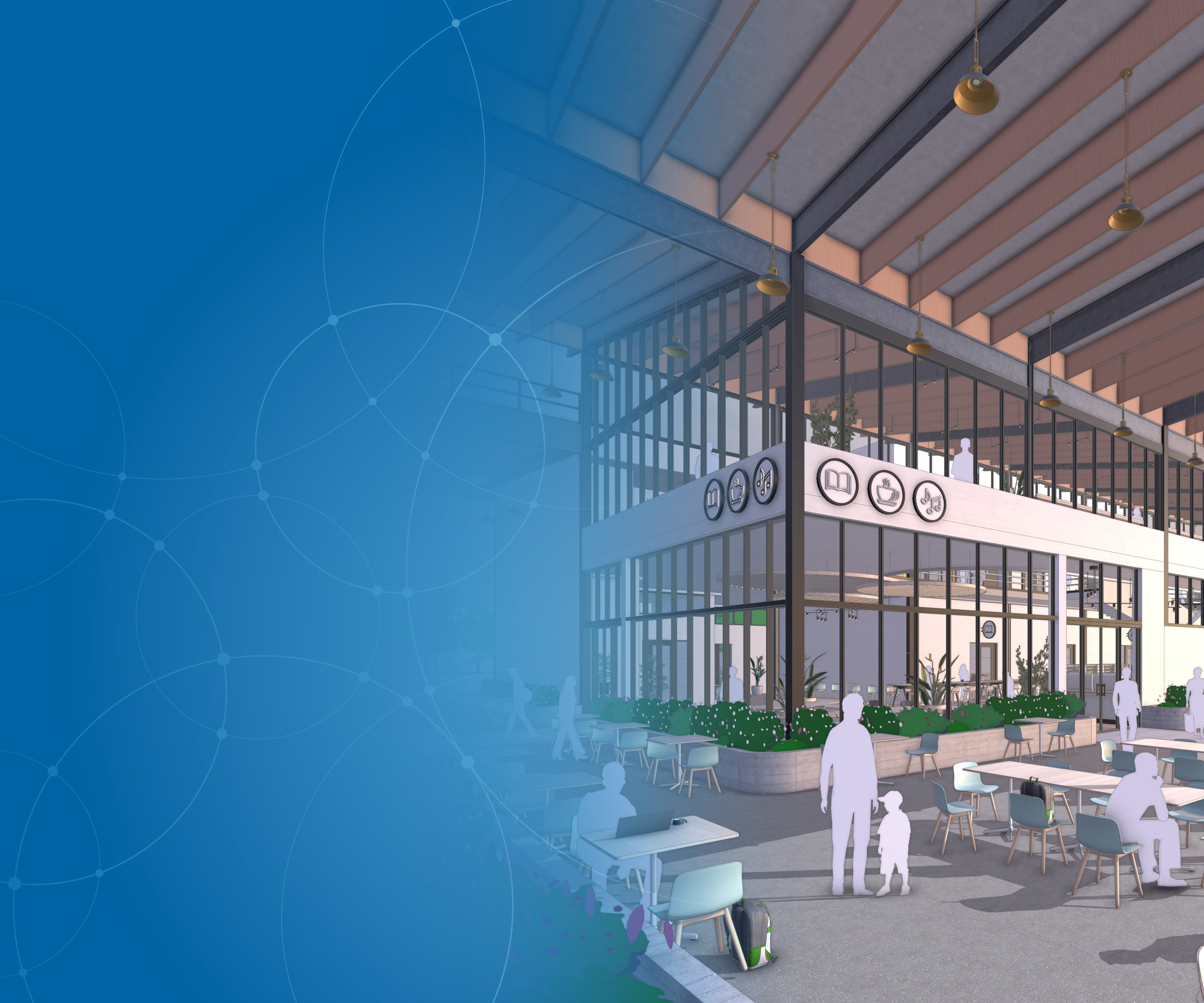
SketchUp is widely used for interior design, furniture design and architecture. Mild learning curve. A few hours of practice and you'll draw simple furniture. With the free SketchUp Web you can create up to 30 models via Claude. For unlimited use and GLB export you need a paid plan (SketchUp Go from around $20 per month). This first version of the connector focuses on building new models, not on editing existing files. What Claude does do, is set up a model based on your description, like a dining table or a complete interior. Adding details, tweaking proportions and finishing the model is something you do yourself in SketchUp afterwards. Good fit for anyone wanting fast straight, geometric shapes. Great for furniture, cabinets, kitchens and interior layouts.
Autodesk Fusion
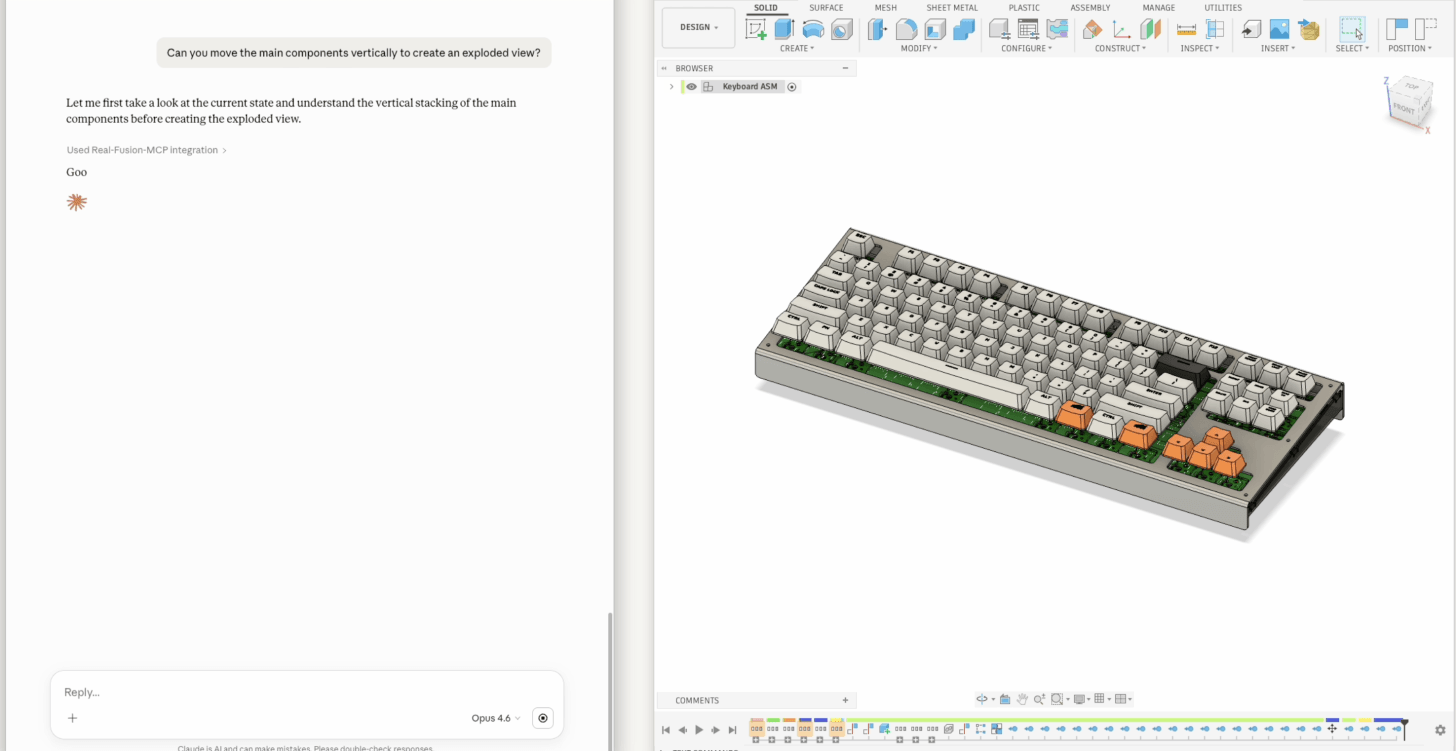
Autodesk Fusion is paid software for technical 3D drawing (CAD), with a steep learning curve. It's parametric design where dimensions must be exact, not free modelling. Well documented with an active community. In a chat you tell Claude what you want. It builds or modifies the model in Fusion. Good fit for webshops with technical products like jewellery, tools or parts where dimensional precision matters.
These tools were built for 3D artists, designers and engineers, not specifically for webshop owners. Still, you can build webshop-ready models with them. The GLB file you export matches what browsers need. With Claude alongside, the step gets smaller. You don't need to hire a 3D modeller for a first experiment, although it remains a tool you have to get the hang of.
Don't want to learn a tool?
If you'd rather skip learning a 3D tool, there's a more accessible option: with Copilot 3D you create a 3D model from a photo. Not professional enough for every product, but perfect for a first experiment.
How do you put a 3D model on your webshop?
You export the 3D model from Blender, SketchUp or Fusion as a GLB file. That's the standard format for 3D on the web. One file holds the geometry, materials and textures.
The GLB file is then on your computer. Now what? Clicking it usually reopens your 3D tool. Sometimes a basic preview shows up without interaction. You can't send it via WhatsApp, you can't paste it into an email and you can't just upload it to your CMS. For your webshop you need a viewer. That's software that loads the model in the browser, works on mobile and enables AR on phones.
With Virtualdisplay Portal you get there in a few minutes. Your first model is free, so you can try it out before committing.
- Create an account at portal.virtualdisplay.io.
- Upload your GLB file. You instantly get an embed code and a shareable link.
- Paste the embed code on your product page or share the link via WhatsApp, email or social media.
From that moment your customers can view the product from all angles and zoom in on details. On their phone they see it in their own room using AR, without installing anything.
What if the quality isn't good enough?
AI tools produce impressive work, but they don't always deliver webshop-ready results. AI often doesn't get products with lots of detail right in one go. Colours or materials may not look quite right. The model can be too heavy and load slowly on phones.
For a first impression or a prototype you can do it yourself just fine. For your actual product pages you probably want a professional result. We create photorealistic 3D models from your product photos or technical drawings, optimised for web and AR. Get in touch if you want to know what we can do for your products.
Want to try it yourself?
Try one of the tools, put your first model in Portal or let us create a professional 3D model for you.