May 11, 2026
What is a GLB file? The 3D format webshops need
GLB is the standard format for 3D models on the web. Virtually every 3D program exports to it, every 3D supplier delivers in it, and every webshop tool that supports 3D asks for it. We explain what it is, why it keeps showing up everywhere and how to work with it in practice.
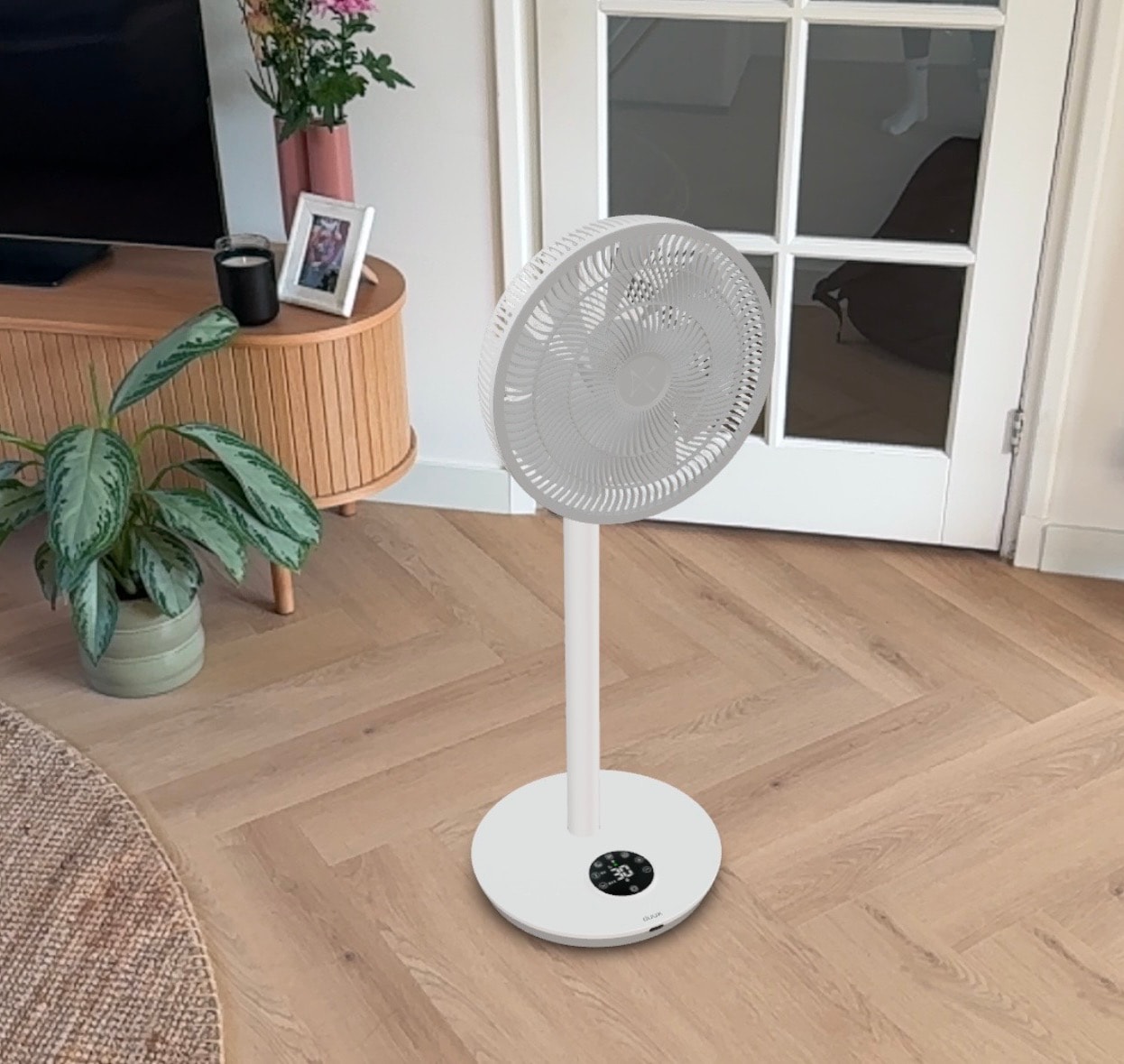
What is a GLB file?
A GLB file is a 3D model saved in a specific format. That format is the standard for 3D on the web. Along with the shape of the model, the file contains the materials, the textures and sometimes animations or colour variants. Everything a viewer needs to show the model sits in that single file.
GLB stands for GL Transmission Format Binary. GL is short for Graphics Library, a family of standards for 3D graphics. Behind those standards sits the Khronos Group, an international consortium of technology companies. The same group is responsible for both GLB and WebGL, the technology browsers use to render 3D. Version 2.0 of GLB has been the stable since 2017. Virtually every 3D tool and webshop platform supports it.
A GLB file isn't something you can open directly like a photo on your computer. To show it on your product page you need a viewer. That's a small piece of software on the page that renders the GLB for the visitor. We come back to it later in the article.
Why GLB for your webshop?
Four reasons this format is the choice for e-commerce.
1. It's the language the whole industry speaks. 3D tools like Blender, SketchUp and Autodesk Fusion export to GLB. Marketplaces like Sketchfab deliver in GLB. Shopify's 3D feature and most WordPress plugins use GLB. That makes it easy to switch tools or suppliers without losing your models.
2. Compact and fast. A GLB is binary and that keeps it small. A well-optimised model of a product weighs between 1 and 5 MB. That's comparable in size to a good-quality product photo. And you can't rotate that one 360 degrees.
3. Fits into any modern webshop. Some webshop platforms have 3D support built in. For other webshops, a hosting tool like Virtualdisplay Portal provides an embed code that you paste on your product page. The viewer is handled for you. No plugin for the customer, no download.
4. AR works on most phones. On Android, browsers show a GLB directly in AR. On iPhone, Apple uses its own 3D format (USDZ) for AR mode. A good viewer handles that conversion automatically. You deliver one GLB file. Customers on both operating systems can see how the product would look in their own home.
How does GLB compare to GLTF, USDZ and FBX?
For your webshop, GLB is the choice. It's an open standard that is not tied to a single company. Everything sits in one file, with no separate textures alongside it. And the entire 3D industry works with it. The other formats you'll come across fall short on one or more of those points.
GLB (.glb)
The standard format for 3D on the web. One compact file with the geometry, materials and textures inside. Open standard, supported by all modern viewers and webshop platforms.
No separate files, no conversion work, no vendor lock-in. For your webshop, this is the choice.
GLTF (.gltf)
The same standard as GLB, but split into a text-based JSON file with separate texture and data files around it. That means a viewer doesn't have to load everything at once, it can pull textures only when needed. A GLB always loads the full package. The downside of GLTF is more files to manage and a higher risk of missing files. 3D artists often work in GLTF during production and deliver a GLB for the live version.
Fine during production. For your webshop you want a GLB as the final deliverable.
USDZ (.usdz)
Apple's own 3D format for AR Quick Look on iPhone, iPad and Vision Pro. Doesn't work on Android or outside Apple's ecosystem. A good viewer creates a USDZ version from your GLB automatically.
No need to order separately. One GLB suffices if your viewer handles the conversion.
FBX (.fbx)
A closed format from Autodesk used a lot in 3D design software. Not a web standard, browsers don't render it. Often produces large files with more information than a webshop needs.
Ask for conversion to GLB before you can use it on your webshop.
OBJ (.obj)
An older format without built-in support for materials or textures. Those get added through a separate MTL file, which makes management awkward. No animations, no variants.
Avoid for modern webshops.
Rule of thumb: ask every 3D supplier for a GLB file, optimised for the web. That covers nearly everything.
How do you optimise a GLB file for your webshop?
Not every GLB is equally usable. A model that looks good in a design tool can load slowly or even crash on a phone. Four things to watch when a GLB lands on your desk.
Polycount: the level of detail
A 3D model is built from small triangles. More triangles, more detail, bigger file. For a product page you want to stay under 100,000 triangles per model. Above that, it slows down on an older phone.
Textures: the surface of your model
Textures are the images that cover the surface. Wood, fabric or metal. A 4K texture per part sounds great, but loads poorly. Aim for 1K or 2K and use KTX2 compression. That's a texture compression supported by every modern browser.
Geometry compression: ZIP for 3D
Draco or Meshopt compress the geometry of your model. That usually shaves 80% off the file size with no visible loss in quality. Ask your supplier for a Draco-compressed GLB.
Test in the browser, not just in Blender
What runs well in Blender on a laptop doesn't automatically run well on an older phone. Always test your GLB in a real browser on a regular device before you put it live.
A free check tool is gltf.report. Drop your GLB in and you see polycount, texture size and compression at a glance. Handy for checking a supplier's GLB before you accept it.
Rule of thumb: a GLB for a product page should weigh under 5 MB. The lighter and the faster, the better the chance a customer stays engaged.
How do you put a GLB file on your webshop?
You have an optimised GLB. Now you want your customers to see it on your product page. For that you need a viewer that reads the file, renders on desktop and mobile, and handles AR mode.
With Virtualdisplay Portal you have that set up in a few minutes. Portal hosts your GLB on a fast CDN, handles the viewer and automatically serves a USDZ version for iOS AR. Three steps, and we have written them out.
- Create an account at portal.virtualdisplay.io. Your first model is free.
- Upload your GLB through the upload button. Portal stores it and gives you an embed code and a shareable link immediately.
- Paste the embed code into your product page. One line of HTML, done. You can also share the link through WhatsApp, email or social media.
What if you don't have a GLB file yet?
No GLB? Three routes to get one.
Ask your 3D supplier for a GLB export. Virtually every modern 3D program can export to GLB, whether you work in Blender, SketchUp or Autodesk Fusion. If the supplier delivers in another format such as FBX, OBJ or GLTF, conversion is rarely a problem.
Try an AI tool for a first experiment. With Microsoft Copilot 3D you turn a product photo into a 3D model in a few minutes. With Claude in Blender or SketchUp you build models through a chat. Both free to try, although the quality isn't always webshop-ready.
Commission a professional model. For your real product pages you usually want a photorealistic result that fits your brand. We build 3D models from your product photos or technical drawings, optimised for web and AR. Get in touch if you'd like to know what we can do for your products.
Ready to put your first 3D model online?
Upload your GLB in Portal and get an embed code for your product page within minutes. Your first model is free.