Technical and installation - Show the connection your customer needs to check
Connection size, mounting direction, which version. On technical products the order hangs on details buried in a table. In 3D your customer turns the product around and picks the version as he goes.
Why this works for technical products
Technical products are about precision. The buyer usually knows what he is looking for, but has to check whether this particular item is right: does the connection fit, is the size correct, does the mounting line up.
That checking happens in a dimensioned PDF today, or over the phone. Both cost time, yours and his. A model he can turn himself answers most of those questions without you doing anything.
And when it goes wrong it is expensive. A wrong connection means a return, a reorder and an installer standing still. That is a different kind of return from a cushion in the wrong colour.
Turn them yourself
3 models from our library. Drag to rotate, scroll to zoom.
Air conditioning unit
Look at the housing from every side, including the back where the connections sit.
Fan
Turn the housing around and find the mounting points. A photo from the front hides them completely.
Castor wheel
Small component, plenty of detail. See the plate, the bolt holes and the height in proportion to each other.
What a configurator adds to that
A configurator does not stop at looking. Your customer picks the version, and the model changes with it.
Pick a version
Show the variants you stock. The customer switches between them and sees the difference, instead of comparing two part numbers.
Zoom in on what matters
Connection, mounting, profile. Add an annotation and your customer reads the measurement on the part itself.
At real size, in the room
With AR your customer places the product to scale where it has to go. Does it clear that cabinet, fit under that ceiling?
Request a quote
Your customer sends his configuration over, chosen version included. You get a request you can price straight away.
What it asks of you
You need 1 3D model per item. If you do not have one, we build it from whatever you have: photos, drawings or existing files.
Then you upload it to Portal and paste the embed code on your product page. How that works is in how to host a 3D model on your website.
What it costs is on pricing. Start with your best-selling item and see what visitors do with it before converting the rest.
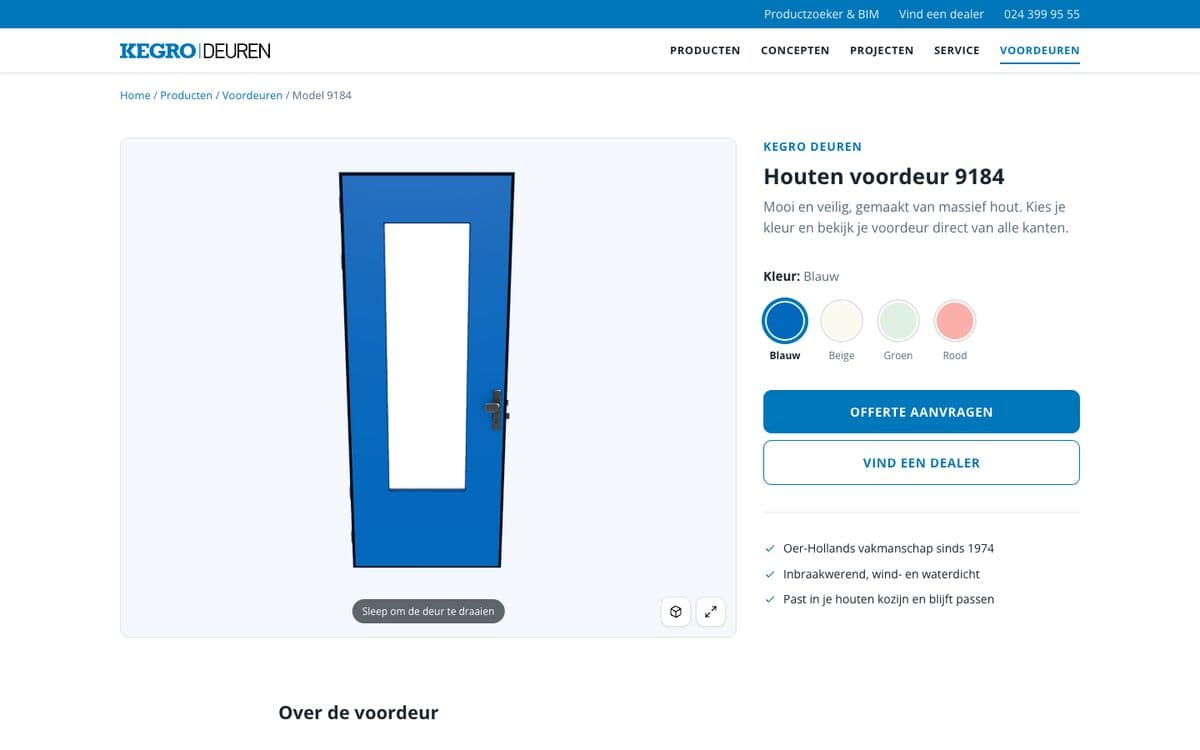
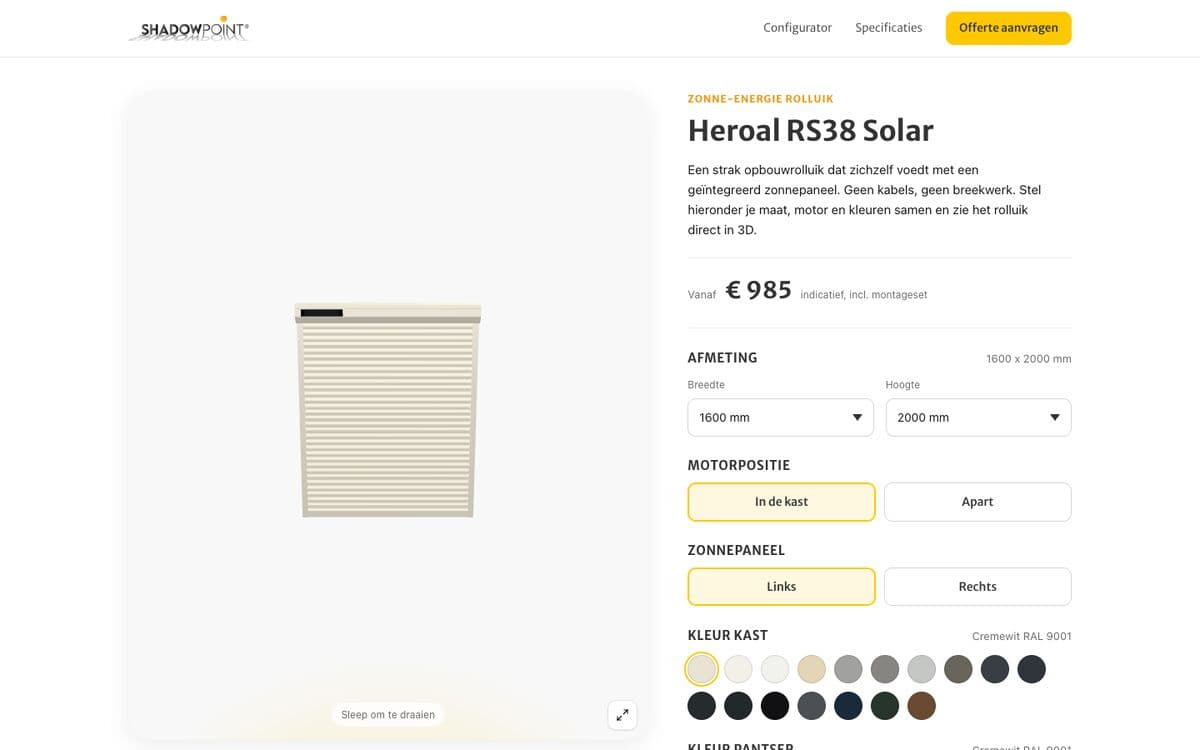
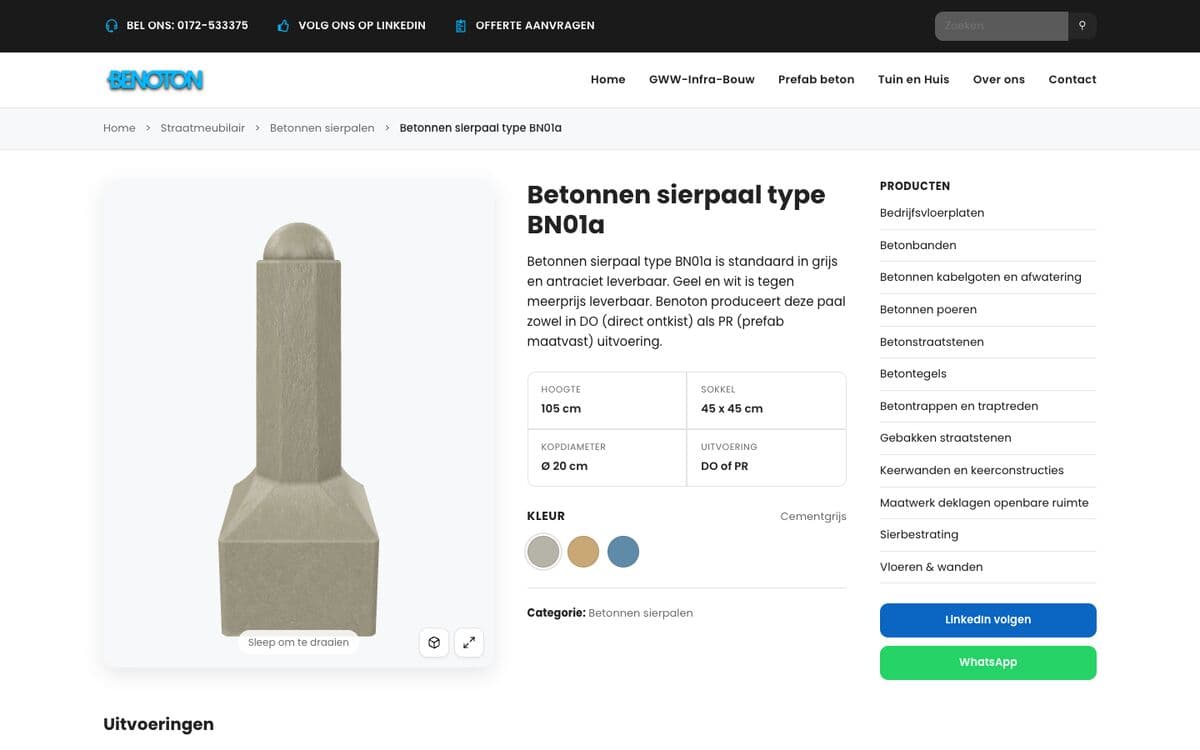
This is what configuring looks like
We built these examples ourselves, around existing products and with the product page around them.
Start with 1 item
Upload a model, or send us your CAD file. Your first model is free.